I have my Canon EOS 7D (damn you Nikon!) body but no lenses. I ordered the 18-55mm IS USM kit lens from a different vendor to use as reference but it hasn't arrived. While the battery is charging I tried out my Nikon 28mm MF AI with a Kawa Nikon to EOS body adapter. It gave me a scare when the second time I tried it, the lens came lose. I felt cold as I thought about how to remove the adapter from the brand new body. So I discover how to mount a Nikon lens correctly by practicing with an N6000 film body. Hence my previous post. Good thing I had a body cap too while I figured it out. I put the lens back on to the Canon and unlocked the entire assembly. I take it out and put it back on to be sure I knew how to do it properly.
One thing I notice immediately, my viewfinder image is fuzzy even with infinity focus set. And the focus screen image is darker with a mottled look. I don't remember it looking this way on the 5d and T1i on the shop floor. Is this normal on a 7D? I'll have to ask the guys at DVInfo. I'm a noob again.
In about 2.5-4 hours the battery will be charged. Live View will give some clarity (pun intended).
Update: There viewfinder looked blurry and dark due to the LCD overlay. Once a battery is inserted into the body it clears up.
Friday, October 2, 2009

Using Nikon to EOS lens adapter
Ok, you put your adapter on until you are certain it locks to the lens body. To insert a nikon lens on an f-mount it is with the 'top' at the 3 o-clock position. Then twist counterclockwise to the 12 o-clock when the lock clicks.
To insert the whole assembly to the EOS body, you find the red mark on the adapter, align to the red mark at the 12 o-clock on the body. Twist clockwise until it locks.
To unlock the assembly, push the locking button on the body, twist counter clockwise.
To remove the adapter from the lens, find the tab where the locking pin should be. You should be looking at the rear of the lens. Pull the tab toward you so the locking pin is disengaged. Then twist clockwise if you're facing the rear of the lens.
To insert the whole assembly to the EOS body, you find the red mark on the adapter, align to the red mark at the 12 o-clock on the body. Twist clockwise until it locks.
To unlock the assembly, push the locking button on the body, twist counter clockwise.
To remove the adapter from the lens, find the tab where the locking pin should be. You should be looking at the rear of the lens. Pull the tab toward you so the locking pin is disengaged. Then twist clockwise if you're facing the rear of the lens.
Sunday, September 27, 2009
Using AVI files from Casio Exilim FC100 in Sony Vegas Pro 8
The first clue was my thumbnails were green with a band of static on it. I've always used the MPC included in CCCP which didn't have problems playing back the video clips. Portable VLC has its own decoders so it never has a problem. Windows Media player didn't work despite having a copy of Morgan installed. What I had to do was enable MJPEG in FDDShow for VfW. Vegas and Windows Media Player needed a VfW drive.
Start -> Programs -> Combined Community Code Pack -> Filters -> FFDShow VFW Codec Configuration
Decoder -> Codecs -> MJPEG -> libavcodec (from disabled) -> Apply
Decoder -> Codecs -> Other MJPEG -> libavcodec (from disabled) -> Apply
Reboot your PC.
Start -> Programs -> Combined Community Code Pack -> Filters -> FFDShow VFW Codec Configuration
Decoder -> Codecs -> MJPEG -> libavcodec (from disabled) -> Apply
Decoder -> Codecs -> Other MJPEG -> libavcodec (from disabled) -> Apply
Reboot your PC.
Monday, February 23, 2009
Realtek, Audacity, and Windows Vista
For the past few years I've been capturing my audio via HDV. Strange huh? I thought that my cheap microphones were the ones the sucked. I had an Audiotechica ATR-25, ATR-35 and Azden SMX-10. But they worked fine when monitoring the audio levels on my HV20/30's display. The microphone in on my editing computer always came in barely audible for voiceovers. That was until I discovered the culprit: Audio Enhancements.
Do yourself a favor and turn off the extra effects on your Microphone.
Start -> Control Panel -> Sound -> Recording -> Microphone -> Properties -> Enhancements -> Disable all sound effects
If you're using Audacity you're better off applying the adjustments yourself. The default setting has DC Offset Cancellation which mutes the microphone if it determines it is "too loud." It wasn't doing a very good job. Noise Suppression and Acoustic Echo Cancellation were kind of dodgy. Like when you over apply noise cancellation in Audacity it starts to sound like a tin can.
With everything off, life is better.
Do yourself a favor and turn off the extra effects on your Microphone.
Start -> Control Panel -> Sound -> Recording -> Microphone -> Properties -> Enhancements -> Disable all sound effects
If you're using Audacity you're better off applying the adjustments yourself. The default setting has DC Offset Cancellation which mutes the microphone if it determines it is "too loud." It wasn't doing a very good job. Noise Suppression and Acoustic Echo Cancellation were kind of dodgy. Like when you over apply noise cancellation in Audacity it starts to sound like a tin can.
With everything off, life is better.
Saturday, November 29, 2008
YSM35B Finalize the Adapter
This is the tenth in the series of instructions on how to build the YSM35B Vibrating 35mm DOF Adapter. In the last part we attached the motor to the adapter. Now we finalize the vibrating adapter.
Finalize the Adapter
Tools you will need for this portion:
Glue gun
Metal ruler
Remove ring #3 and adjust the focus screen distance. Do the same adjustment for infinity focus as you did earlier in the series. Once you have the distance right, glue the top focus screen mount to the stilts. Tap the glue gun to the edge of the stilts and let it drip down to the mount. Pull the glue gun away carefully to not drop any on the focus screen. Do all three stilts. Then glue the motor as well. Allow to cool. Then close everything up!
The above video has an extra section explaining one battery versus two.
Premiliminary Demo
Above is a demo using the 1 battery setup. You can see some oscillation in the image. Unlike the YSM35A this model is running too slow. I've changed back to the original 2 battery design.
That's it!
I hope you had fun during this build. Watch for future updates. Now go out there and make movies. Good luck!
Finalize the Adapter
Tools you will need for this portion:
Glue gun
Metal ruler
Remove ring #3 and adjust the focus screen distance. Do the same adjustment for infinity focus as you did earlier in the series. Once you have the distance right, glue the top focus screen mount to the stilts. Tap the glue gun to the edge of the stilts and let it drip down to the mount. Pull the glue gun away carefully to not drop any on the focus screen. Do all three stilts. Then glue the motor as well. Allow to cool. Then close everything up!
The above video has an extra section explaining one battery versus two.
Premiliminary Demo
Above is a demo using the 1 battery setup. You can see some oscillation in the image. Unlike the YSM35A this model is running too slow. I've changed back to the original 2 battery design.
That's it!
I hope you had fun during this build. Watch for future updates. Now go out there and make movies. Good luck!
YSM35B Attaching Motor to Adapter
This is the ninth in the series of instructions on how to build the YSM35B Vibrating 35mm DOF Adapter. In the last part we reviewed the differences between the YSM35A and YSM35B. Now we attach the motor and power connector to the adapter itself.
Attaching Motor to Adapter
Parts and Tools needs for this portion:
Phono plug (RS 274-0852)
Soldering iron/gun
Silver bearing Solder (RS 64-025)
Drill
Eye protection
Wear safety glasses when operating the drill. Disassemble the static adapter from Ring #3 out. Leave Ring #2 attached to the F-mount. The motor mount area should be bottom. Note the alignment of the focus screen mount so the motor will become a fourth leg.
Take ring #2 on the adapter and mark out where you need to put the phono plug. It should be on the bottom and between the front and rear threads. Examine the ring inside and out before you drill.
Make a pilot hole with a 1/8" drill bit to start. This will take a few minutes of drilling. Rest your drill every so often. Then check to make sure your distances are alright. You shouldn't eat into the rear thread where ring #3 attaches or the front thread where the Nikon F-mount attaches.
Enlarge the hole with a 1/4" drill bit. This will be much quicker. Clean your work area of the aluminum dust.
Heat up your solder gun now. Meanwhile find your other phono plug. Remove the washer and middle/center conductor. Leave the spacer. Slot that onto the hole you made into ring #2. Attach the conductor to the threads on the phono plug from inside ring #2. Follow with the washer to fasten both together. The connector tab for the conductor should be facing inward.
Tin the back/center pole and the middle/outer conductor. Solder the red wire from the vibrating motor to the back/center pole. The blue wire goes to the middle/outer conductor. This should result in center of phono plug being positive and outer being negative. This matches the control box.
You can now re-assemble the vibrating mount, ring #2 and nikon F-mount together. To get the vibrating mount in you may have to insert it at a slant. Screw it all together via the found mount rather than rotating ring #2.
Re-align the right side stilt(leg) to the F-mount locking pin. Then remove the adhesive backing from the motor and press it on to the top focus screen mount.
During this endeavor the focus screen mount was probably displaced. Adjust the distance of the focus screen. Later we will glue the stilts so the distance is permanent. For now, just get it in the approximate distance. You might have to bend or loop the solid core wire so it doesn't bend the other legs. The adapter now has four legs.
Clean the focus screen. Hopefully you didn't touch it at all during this process. Attach the control box and test.
What's Next?
We finalize the vibrating adapter. We need to readjust for correct infinity focus. Once we are confident, we glue it to be permanent.
Attaching Motor to Adapter
Parts and Tools needs for this portion:
Phono plug (RS 274-0852)
Soldering iron/gun
Silver bearing Solder (RS 64-025)
Drill
Eye protection
Wear safety glasses when operating the drill. Disassemble the static adapter from Ring #3 out. Leave Ring #2 attached to the F-mount. The motor mount area should be bottom. Note the alignment of the focus screen mount so the motor will become a fourth leg.
Take ring #2 on the adapter and mark out where you need to put the phono plug. It should be on the bottom and between the front and rear threads. Examine the ring inside and out before you drill.
Make a pilot hole with a 1/8" drill bit to start. This will take a few minutes of drilling. Rest your drill every so often. Then check to make sure your distances are alright. You shouldn't eat into the rear thread where ring #3 attaches or the front thread where the Nikon F-mount attaches.
Enlarge the hole with a 1/4" drill bit. This will be much quicker. Clean your work area of the aluminum dust.
Heat up your solder gun now. Meanwhile find your other phono plug. Remove the washer and middle/center conductor. Leave the spacer. Slot that onto the hole you made into ring #2. Attach the conductor to the threads on the phono plug from inside ring #2. Follow with the washer to fasten both together. The connector tab for the conductor should be facing inward.
Tin the back/center pole and the middle/outer conductor. Solder the red wire from the vibrating motor to the back/center pole. The blue wire goes to the middle/outer conductor. This should result in center of phono plug being positive and outer being negative. This matches the control box.
You can now re-assemble the vibrating mount, ring #2 and nikon F-mount together. To get the vibrating mount in you may have to insert it at a slant. Screw it all together via the found mount rather than rotating ring #2.
Re-align the right side stilt(leg) to the F-mount locking pin. Then remove the adhesive backing from the motor and press it on to the top focus screen mount.
During this endeavor the focus screen mount was probably displaced. Adjust the distance of the focus screen. Later we will glue the stilts so the distance is permanent. For now, just get it in the approximate distance. You might have to bend or loop the solid core wire so it doesn't bend the other legs. The adapter now has four legs.
Clean the focus screen. Hopefully you didn't touch it at all during this process. Attach the control box and test.
What's Next?
We finalize the vibrating adapter. We need to readjust for correct infinity focus. Once we are confident, we glue it to be permanent.
YSM35B Difference in Design to YSM35A
This is the eight in the series of instructions on how to build the YSM35B Vibrating 35mm DOF Adapter. In the last part made the control box. Now we re-examine the difference between this version and the original.
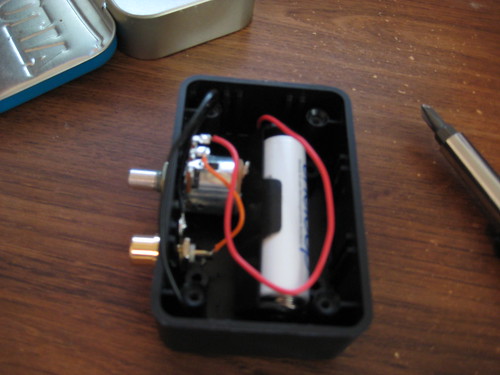 Click on the picture to see the Flickr Notes
The original YSM35A used a Rheostat and Power switch. I couldn't find a Rheostat this time around so I subsituted with a Mini Volume Control. Rheostats and Volume Controls are found in the Potentiometer area of hobby electronics (e.g. Radioshack).
The difference is Rheostats are made for higher voltages and doesn't turn off. That is why the power switch (SPDT Mini-Toggle) is needed. A volume control switch is a potentiometer with a built-in SPDT switch. We will be using a tiny motor so it should be fine to put 1.2 to 3 volts through it without burning it out. The dial won't have the precision of a rheostat but it will do.
Another difference with the A model is the use of only one battery. This reduction from 2.4 - 3v (NIMH/Alkaline) to 1.2 to 1.5 volts (NIMH/Alkaline) is an experiment. With the soldering skill you develop it won't be too hard to change battery holders later.
What's Next?
We attach the motor and install a power plug on the adapter itself.
Click on the picture to see the Flickr NotesThe original YSM35A used a Rheostat and Power switch. I couldn't find a Rheostat this time around so I subsituted with a Mini Volume Control. Rheostats and Volume Controls are found in the Potentiometer area of hobby electronics (e.g. Radioshack).
The difference is Rheostats are made for higher voltages and doesn't turn off. That is why the power switch (SPDT Mini-Toggle) is needed. A volume control switch is a potentiometer with a built-in SPDT switch. We will be using a tiny motor so it should be fine to put 1.2 to 3 volts through it without burning it out. The dial won't have the precision of a rheostat but it will do.
Another difference with the A model is the use of only one battery. This reduction from 2.4 - 3v (NIMH/Alkaline) to 1.2 to 1.5 volts (NIMH/Alkaline) is an experiment. With the soldering skill you develop it won't be too hard to change battery holders later.
What's Next?
We attach the motor and install a power plug on the adapter itself.
Subscribe to:
Posts (Atom)